Turning Map Layers On and Off
Map layers can either be turned on (displayed in the map) or turned off (not displayed in the map). This functionality allows you to customize the map in order to display information that meets your specific needs.
In the Table of Contents (TOC), there are "Additional Map Layers" and "Base Map Layers". Only the "Additional Map Layers" can be turned on or off in the map extent and by default these map layers are turned off.
To turn map layers on or off in the Table of Contents (TOC):
- Select the plus sign to the left of the layer name. This will automatically expand a list of available map layers to choose from as shown below.
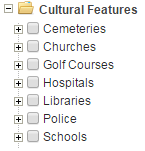
- Select the empty check mark box next to the map layer of interest. When the check mark appears, the map layer is turned on in the map.
Note: Some map layers are designed to only display in the map at certain map scales (See Map Scale). These map layer(s) will appear grayed out in the TOC if the map layer(s) are not available at the current map scale. See image below.
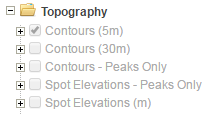
In order to view these map layers, zoom in closer on the map using the "Map Navigation" tools. Once you have zoomed in close enough, you will notice the map layer will appear as normal in the TOC (no gray colour).
Note: Limiting the visibility of map layers is usually a result of map layers having a multitude of features, which reduces clutter in the map view and improves map layer drawing time.
Certain map layers need more time to draw in the map, so it is important to wait at least a minute or so for those map layers to draw.